Features
Every feature, in detail.
The whole list, page by page, as the launcher has it. Everything here is in the current release, v1.9.11.
The launcher
Set up before you play.
Everything is set up before the game starts, with a controller, the keyboard or the mouse. The launcher looks and sounds like the game, using your own copy of it: the King Kong logo, stills from the movie trailer, the main menu music and the game's own menu sounds. Nothing from the game comes in the download.
It follows the game's language setting (English, French, German, Spanish or Italian). Settings are kept in a plain text file, king_kong.toml, next to the game, and every page has Reset page to put just that page back to its defaults.
First start
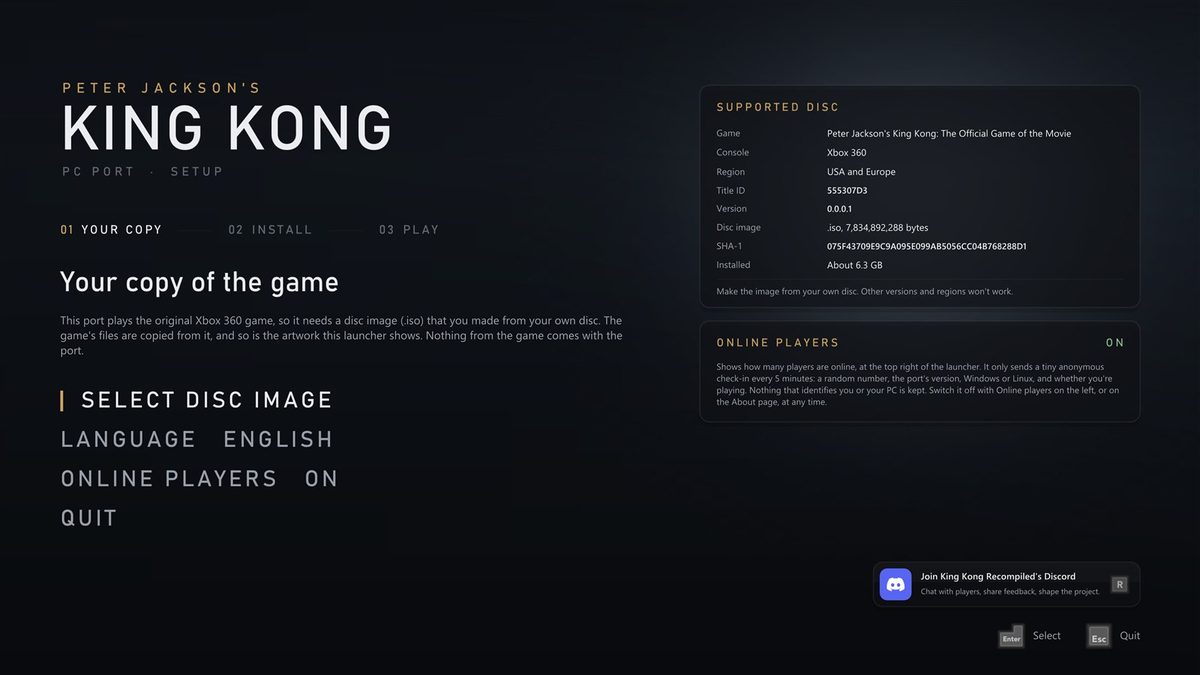
- Asks for your copy of the game first, with a card showing exactly which disc works.
- Checks that the disc image really is King Kong, then installs it, with a progress bar.
- Takes its artwork from your copy, then opens on Home.
- Pick your language, and whether to show online players, before you start.
Home
- Play, with the game's logo over a slow slideshow of stills from the movie.
- Reinstall the game from your disc image.
- Check for updates: a new version downloads on its own screen, then the launcher restarts.
- Add to Steam and Discord panels, each with its own button.
- Players online at the top right, and how the game, the shader pack and the port's version stand.
- Turn the launcher off, and hold Shift while starting to bring it back.
The Home screen shows the game's logo and stills from the movie trailer, which the launcher takes from your own copy of the game. They aren't in the download, and they aren't shown on this site.
Display
Any screen, any window.
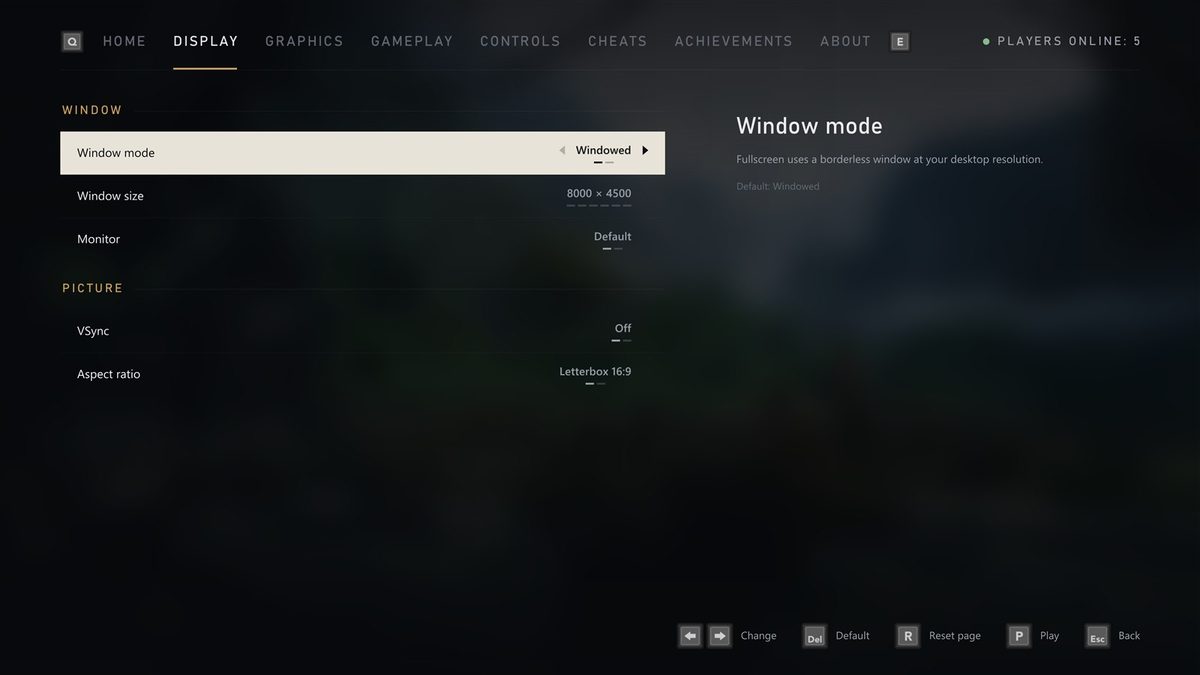
- Windowed or fullscreen.
- A window size that fits your screen.
- Choose the monitor.
- VSync on or off: off by default, and great with G-Sync and FreeSync.
- Keep 16:9 with borders, or stretch to fill.
Graphics
From 720p to 8K.
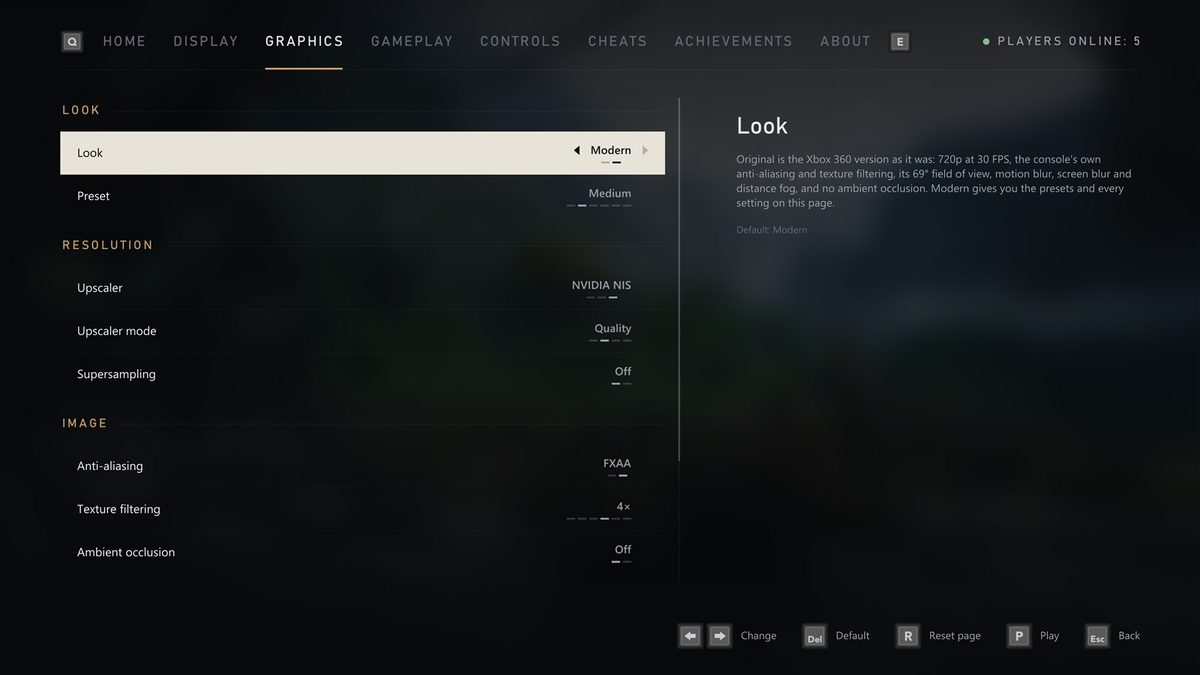
- Look: Original Xbox 360 or Modern (below).
- Presets: Low, Medium, High, Ultra and Steam Deck, or Custom when you set things yourself.
- Upscaler: AMD FSR 1 or NVIDIA Image Scaling, both for any graphics card, or off.
- Render quality with the upscaler off, from Native to Ultra Performance.
- Supersampling: more pixels than your screen has, for the cleanest edges.
- Custom resolution from 1x (720p) to 6x (8K).
- FXAA and texture filtering up to 16x.
- Motion blur, screen blur and distance fog, each on or off.
- Ambient occlusion at strength 1, 2 or 3.
Ambient occlusion
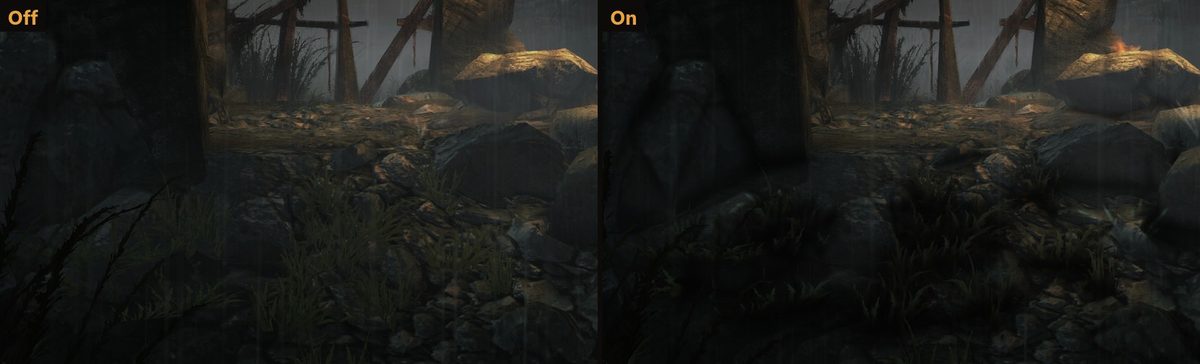
Soft shading where surfaces meet: in corners and creases, and on the ground under rocks, grass and people, so they sit in the scene instead of floating on it. It stays under the game's own distance fog, so far-off walls don't show through the haze. It's off by default; strength 1 is the one to try first. It costs about 1 ms a frame at 4K, and works with NVIDIA and AMD graphics for now.
Distance fog
On by default. Off clears the haze over far scenery, though the fog is part of Skull Island's look and also hides the edges of each area, so some empty backdrops can show.
AMD FSR 1 and NVIDIA Image Scaling
Both work on any graphics card. The launcher picks NIS on an NVIDIA card and FSR 1 on any other to begin with. They scale the game's picture up to your screen and sharpen it, so drawing fewer pixels for a higher frame rate still looks crisp. Upscaler mode picks how many pixels the game draws: Native, Quality, Balanced or Performance, with the resolution shown for your screen.
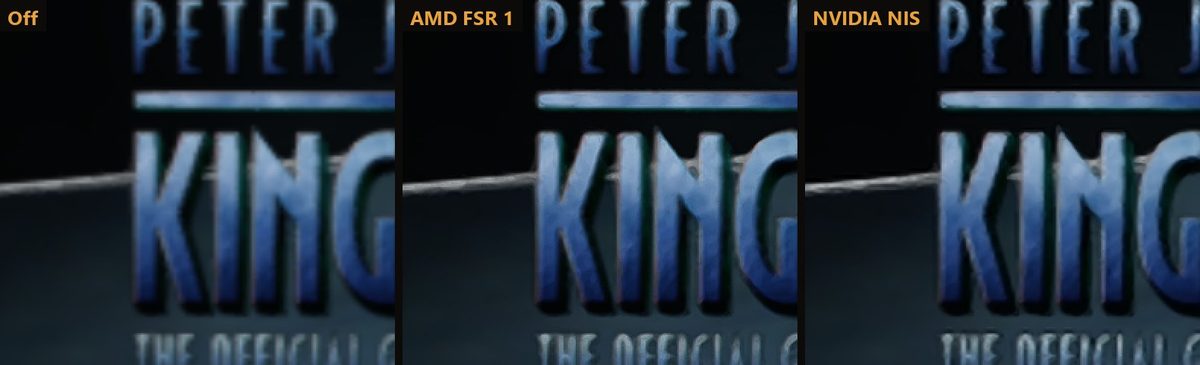
Original or Modern
The console look, one click away.
Original Xbox 360 is the game as it was on the console: 720p at 30 FPS, its own anti-aliasing and texture filtering, the 69° field of view, motion blur and fog, no ambient occlusion and no upscaler. Modern gives you every setting, and switching back to it puts your own settings back. In Modern, a preset sets several things at once:
| Preset | Upscaler | Render quality | Anti-aliasing | Texture filtering | Ambient occlusion |
|---|---|---|---|---|---|
| Low | NIS or FSR 1 | Performance | FXAA | 2x | Off |
| Medium (default) | NIS or FSR 1 | Quality | FXAA | 4x | Off |
| High | NIS or FSR 1 | Native | FXAA | 8x | On |
| Ultra | NIS or FSR 1 | Native | FXAA | 16x | On |
| Steam Deck | FSR 1 | Native | FXAA | 2x | Off |
The presets use NVIDIA NIS on an NVIDIA graphics card and AMD FSR 1 on any other; at Native it only sharpens. Change any setting yourself and the preset shows Custom.
Gameplay
Your frame rate, your view.
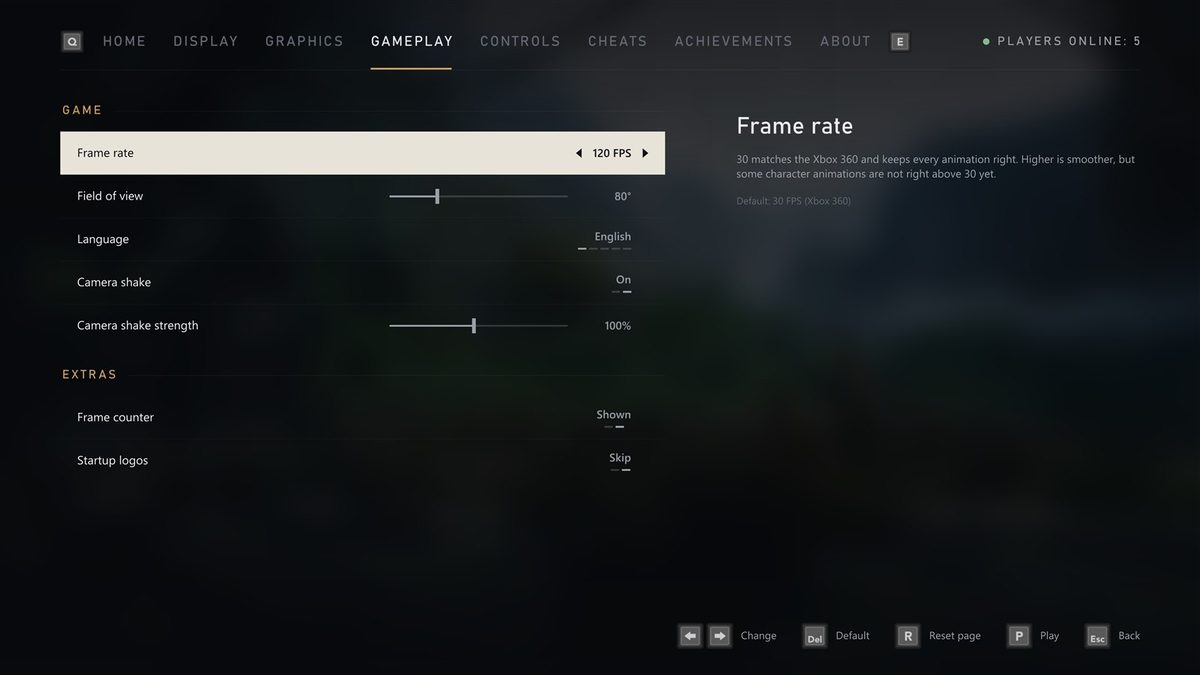
- Frame rate: 30 (the default, like the console), 60, 90, 120, 144, 165, 240 or unlimited.
- Camera shake on or off, with a strength from 10% to 200%.
- Field of view from 69° (the original) to 110°. The game draws the wider area too, Jack's gun keeps its usual size, and the menus keep their original look.
- Language of the game and the launcher.
- Frame counter in the corner, toggled with F2.
- Startup logos: skipped by default, or played.
Controls
Any controller. A real mouse.
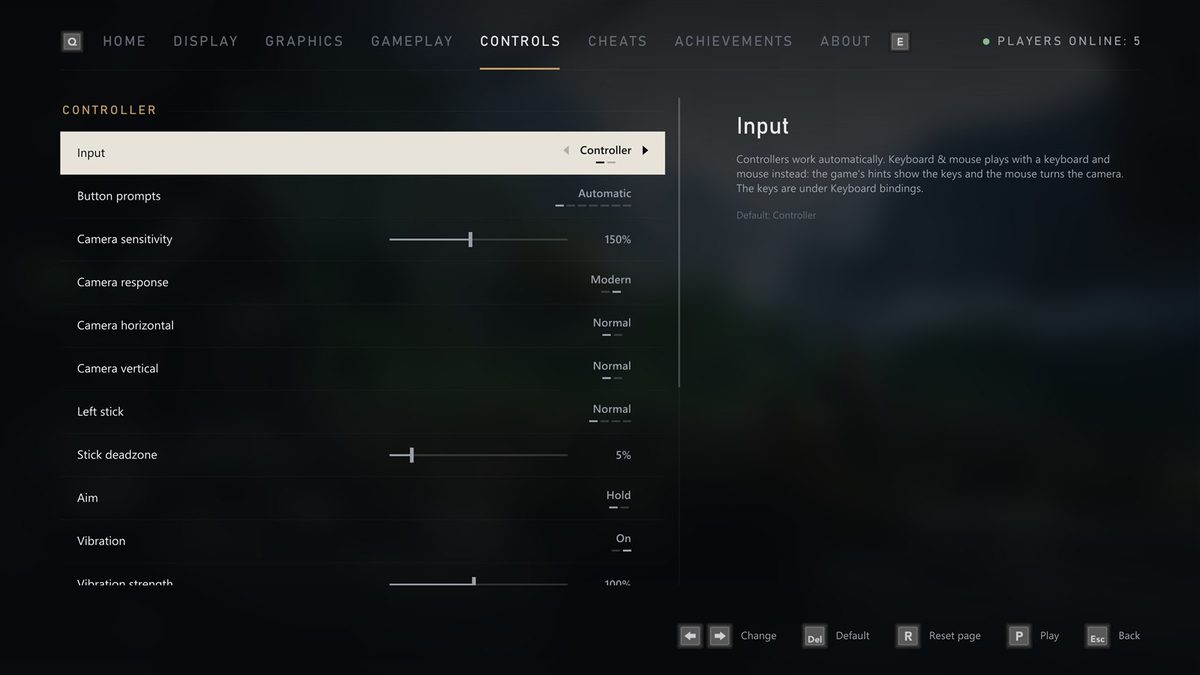
- Invert the camera left and right, and up and down, separately.
- Controller sensitivity from 25% to 300%, and a deadzone to stop drift.
- Camera response: Modern turns the same way in every direction; Original is the Xbox 360's own feel.
- Real mouse look, with its own sensitivity and inversion.
- Toggle aim: press the left trigger once to raise the gun, again to lower it.
- Vibration on or off, from 10% to 200%.
- Remap any button on your controller.
- Keyboard and mouse with a modern layout: left mouse button shoots, right aims, R reloads, WASD moves. Rebind any control.
- Button prompts that match your controller, or pick Xbox 360, Xbox Series, PlayStation 5, PlayStation 2, Steam Deck or keyboard.
| Key | What it does |
|---|---|
| F2 | Frame counter |
| F3 | Performance overlay |
| F7 | Achievements overlay |
| Shift while starting | Open the launcher |
Cheats
No codes to type.
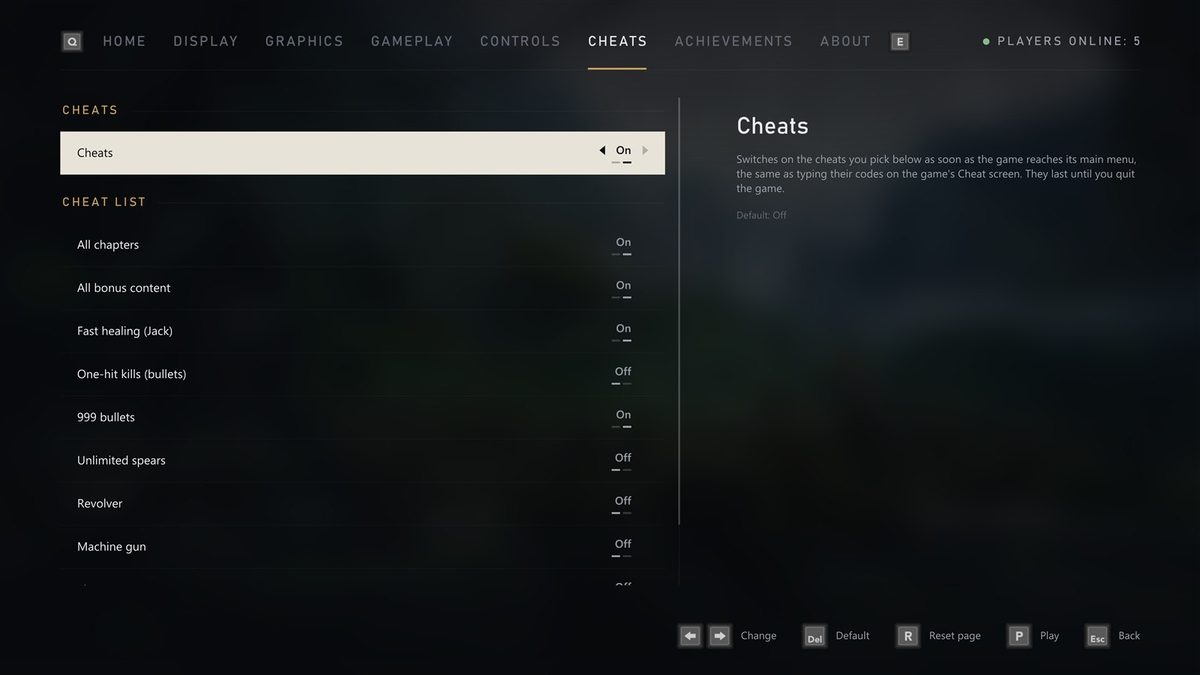
The game's own cheats, as switches. They switch on as soon as the game reaches its main menu, exactly as if you had typed their codes.
- All chapters and all bonus content
- Fast healing and one-hit kills
- 999 bullets and unlimited spears
- The revolver, machine gun, shotgun and sniper rifle
Achievements
All nine, plus one.
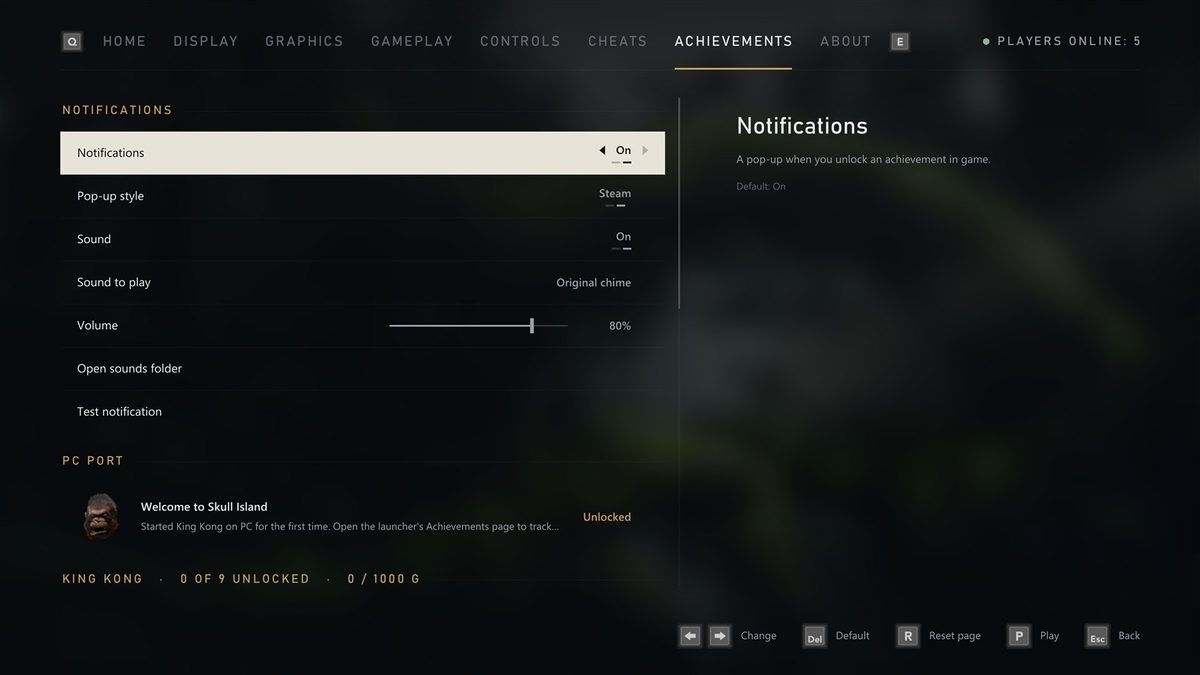
- All 9 achievements with their pictures, descriptions and gamerscore, and which ones you've unlocked.
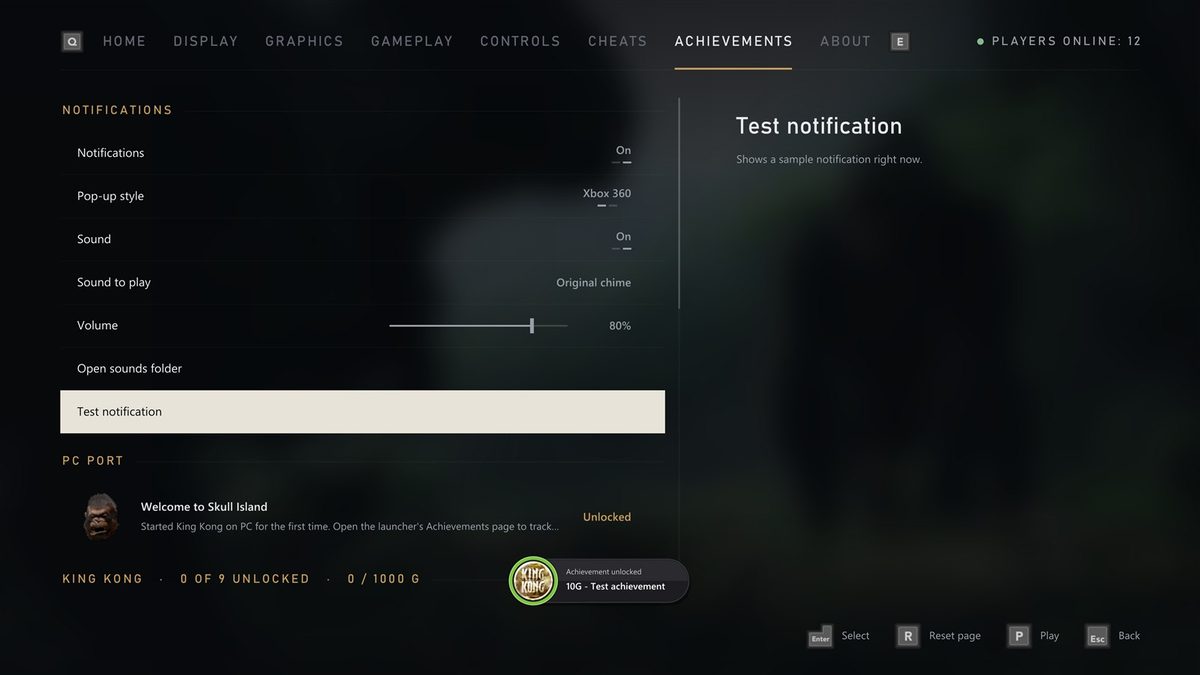
- Pop-ups in the Xbox 360's style or Steam's, with their sound on or off.
- Pick the sound: the built-in chime or any
.wavyou put in thesoundsfolder. - A test button to see and hear it.
- A bonus Welcome to Skull Island achievement the first time you play.
Add to Steam
In your library, in one click.
- Adds the port to your Steam library as a non-Steam game, to start it from Steam, Big Picture or a Steam Deck.
- With its artwork from SteamGridDB: cover, banner, header, logo and icon.
- Steam Input is switched off for it, so your controller keeps working.
- Steam closes for a moment while it's added, and opens again afterwards.
- Once it's in your library, the panel opens Steam instead.
Updates
Always the newest version.
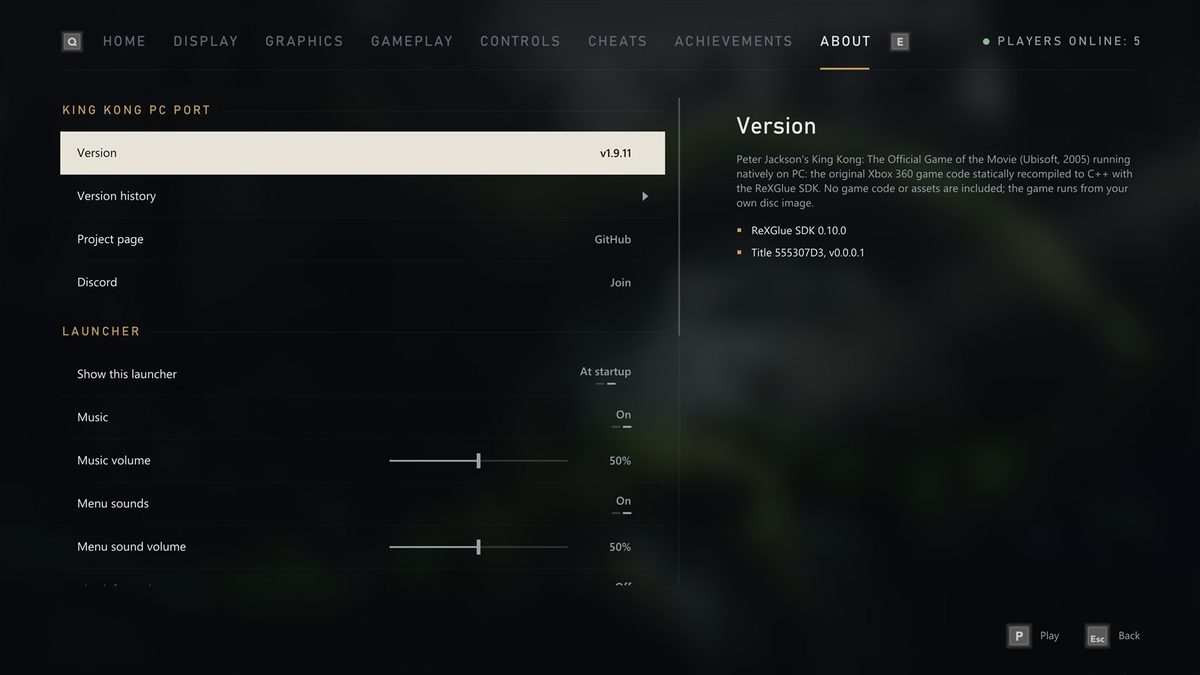
- When the launcher opens it asks GitHub whether a newer version is out. Update now downloads it and restarts; your game, saves and settings stay as they are.
- Stable or beta: the beta gets early test builds of upcoming features. Your saves and settings are kept either way.
- The version history is on the About page.
- The shader pack updates itself: the effects other play-throughs have already prepared, so yours shows them without a pause.
Online player count
On by default, and easy to switch off on the About page. While it's on, the launcher shows how many players are online, and sends a tiny check-in every 5 minutes with four things: a random number that isn't linked to you, the port's version and channel, Windows or Linux, and whether you're in the game. No name, account, IP address or anything from your PC is kept, and switching it off deletes the random number. Nothing is sent while it's off.
Xbox 360 vs PC
Side by side.
| Xbox 360 | PC port | |
|---|---|---|
| Resolution | 1280 × 720 | up to 7680 × 4320 |
| Frame rate | 30 FPS | 30, or up to 240 and unlimited |
| Anti-aliasing | 2x MSAA | 2x MSAA plus FXAA, supersampling or higher resolutions |
| Upscaling | console | AMD FSR 1 or NVIDIA NIS, four modes each |
| Texture filtering | console | up to 16x |
| Display | TV | windowed or fullscreen, any monitor |
| Controls | Xbox 360 controller | any controller, remapping, keyboard and mouse |
| Camera | game options | field of view, inverted axes, sensitivity, deadzone, shake |
| Motion blur, screen blur, fog | always on | each on or off |
| Ambient occlusion | none | optional, three strengths |
| Presets | none | Original Xbox 360 look, Low to Ultra, Steam Deck |
| Startup logos | always play | play or skip |
| Cheats | typed as codes each time | switches in the launcher |
| Achievement pop-ups | console | Xbox 360 or Steam style, your choice of sound |
The VENTURE freeze
Why emulators get stuck, and this doesn't.
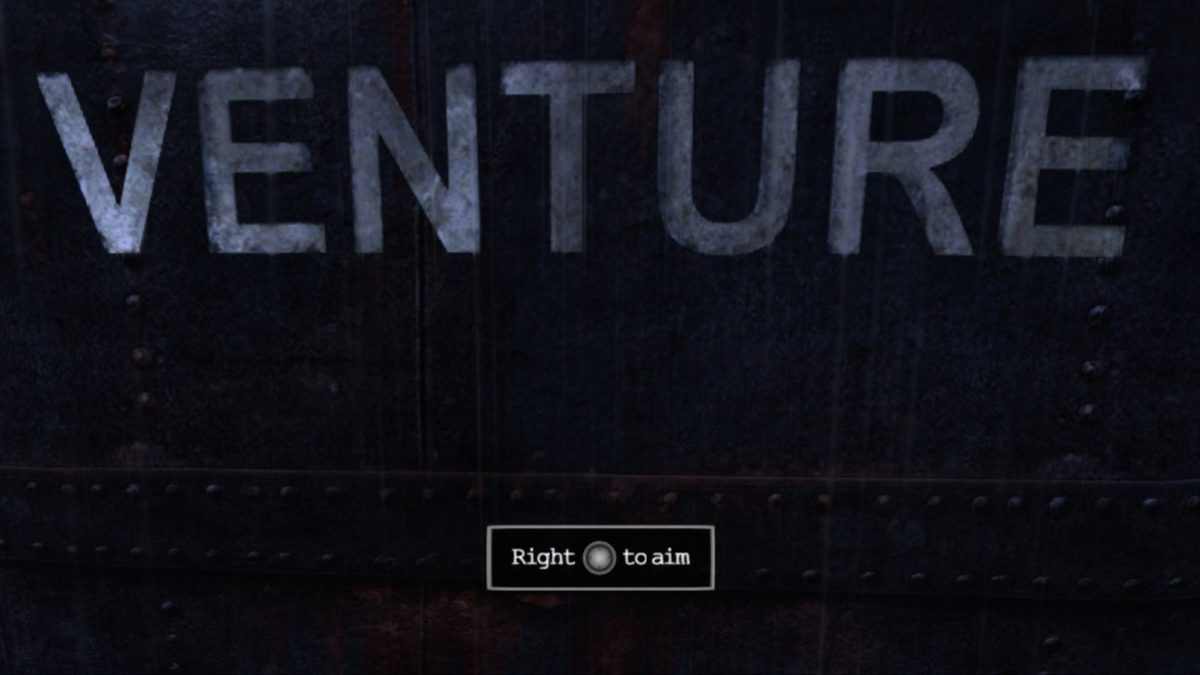
On the Xenia emulator this game gets stuck at the very start, looking at the ship's name, VENTURE (reported here). The cause is how disc reads finish. The game streams music and voice lines with reads it expects to finish right away. The emulator finishes them but reports them as still in progress, so the game thinks it got no data. No voice line ever plays, and the opening waits forever for one to end.
The port finishes those reads the way the console does, so music, voice lines and the opening all work.
Known issues
What isn't right yet.
- Above 30 FPS some character animations are not right yet; for example, the crew rowing at the start skip part of their animation. 30 FPS, the default, plays them correctly. A proper fix is in development.
- There can be a short pause when the game loads the next area. The game does the same on the Xbox 360.
- The pre-rendered videos pause for a moment every couple of seconds while the video player keeps to the video's timing. This is being looked into.
- Under Proton the launcher has no stills from the movie trailer; it shows the title screen from your first play instead.
- The first time you see a new effect it has to be prepared, so an object can occasionally appear a moment late. Effects are saved, so it only happens once, and the shader pack covers what other play-throughs have seen. Stutter-free first runs are in development.
Something else? Here's how to report it.
Free · Bring your own disc
Join the expedition.
Download the port, see how it runs for other players on Quiver, or come and talk to the people making it.